How to update and add budget line items with an import
Written By Ekke
Last updated 9 days ago
You can update many budget line items at once, or add new ones in bulk, by exporting your budget to Excel, editing the file and importing it back. Use it when you re-price work after a tender, update your forecast across many lines, or add a batch of new line items, instead of editing them one by one.
The import works for all four budget columns: Net estimated cost, Target budget, Budget submitted to client and Revised budget.
Step 1: Export your current budget
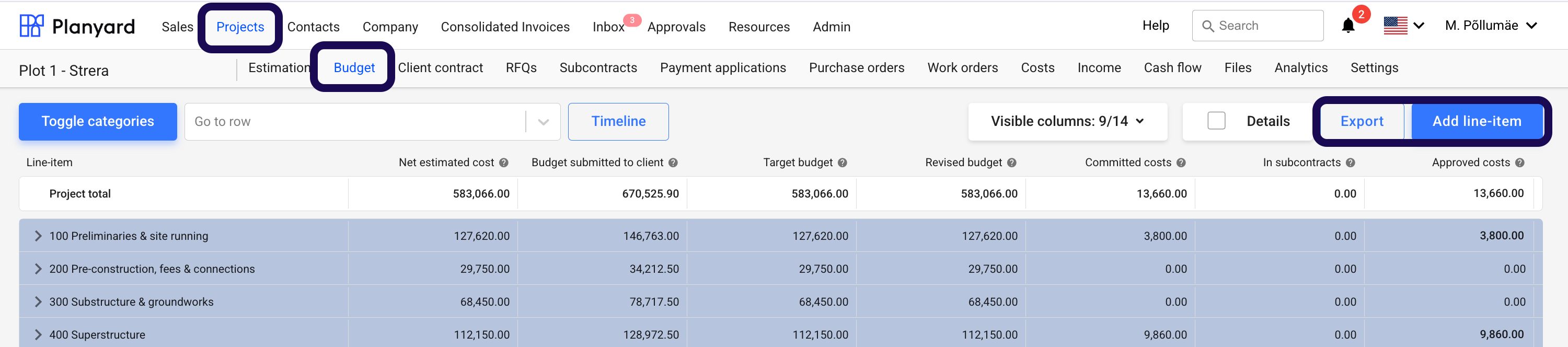
Open your project and go to the Budget view.
Click Export in the top-right corner.
Download the file XLSX (change and import).
The file contains all your current budget data, with a labelled set of columns for each budget type.
Tip: save a copy of the original export before you edit it, so you can go back if something goes wrong.
Step 2: Edit values or add new line items
Update existing line items
Change only the numbers you want to update. Each budget type (Net estimated cost, Target budget, Budget submitted to client and Revised budget) has its own set of Quantity, Unit price and Total columns.
How Planyard reads each cell
Only numbers are read; text in a value cell is ignored.
Tip: when you change Quantity or Unit price, update Total too, or the line won't pass validation. A formula (=Quantity × Unit price) keeps it right automatically, because Planyard reads the final value in each cell.
Add new line items
Add a new row under the category where the line item belongs. Fill in the category level, cost code, line item name and unit, plus a full set of Quantity, Unit price and Total for each budget type you want to fill. The new line item appears in that category after the import.
Don't rename line items or change their cost codes
Planyard matches lines by cost code and name. If you change either one in the file, Planyard adds the row as a new line item and keeps the original as it is. The same cost is then counted twice in your budget. To rename a line, edit it in Planyard instead.
Step 3: Re-import the updated file
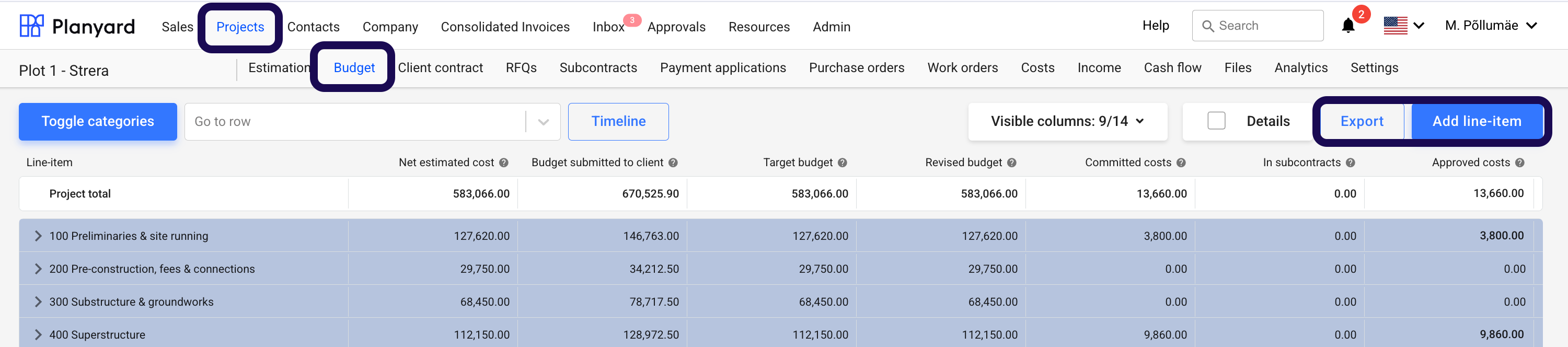
Go back to the Budget view.
Click Add line item in the top-right corner and select Import file.
Drag in your updated XLSX (change and import) file.
In the import dialog, click Update and import.
Important: click Update and import, not Import. Only Update and import updates your existing line items.
Planyard then:
updates existing line items with the new values
adds any new line items in the file
shows an error for any line that fails validation
Re-importing is one of the ways to update your revised budget. Read more in Revised budget: what it is and how to keep it up to date.
Was this helpful?
Still need help? Ask the team