How to add and use prepayments in a subcontract
Written By Ekke
Last updated 10 days ago
Prepayments let you record advance payments made to a subcontractor and later offset them against future invoices. Use it when part of the contract value is paid upfront, such as a negotiated down payment. Planyard tracks the remaining balance, so you can deduct it from later invoices.
How to register a prepayment

Go to your Project and choose Subcontracts in the top menu.
Open the subcontract where you want to add the prepayment.
Scroll down and click Add prepayment.
Fill in the prepayment invoice details, including the net amount (excluding VAT).
Click Submit.
The prepayment now appears in the Prepayments section at the bottom of the subcontract. It shows the total prepayment and how much is settled, waiting and remaining.
Need to change the amount? You can't edit a prepayment after you add it. Instead, either:
add another prepayment for the missing amount, or
delete the prepayment (the red X next to it) and add a new one with the correct amount.
How to deduct a prepayment from an invoice
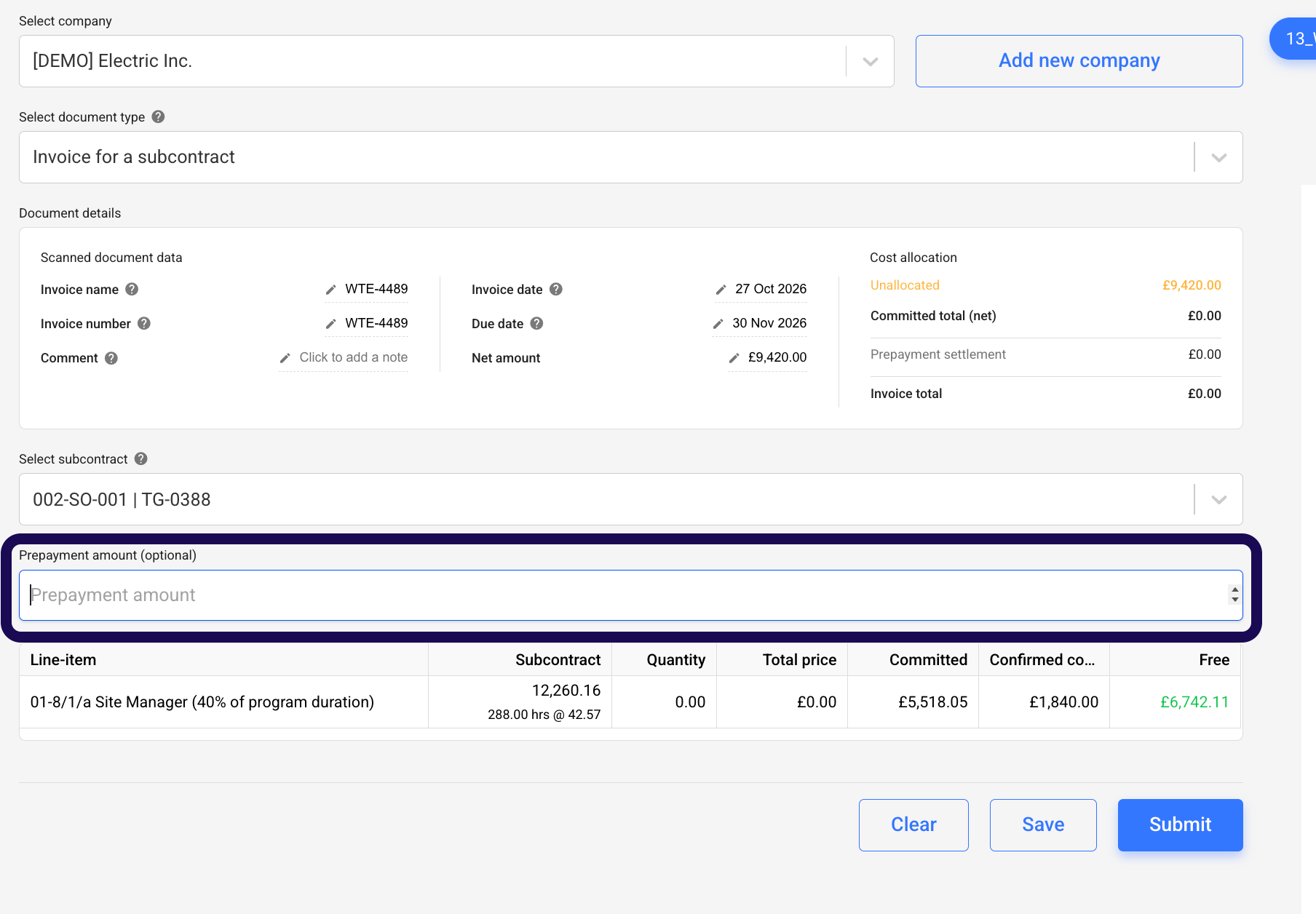
When you add a new invoice to the subcontract, you can deduct all or part of the prepayment:
Enter the amount you want to deduct (up to the available balance).
Planyard reduces the invoice total by that amount and updates the remaining prepayment balance.
Example: You paid a €10,000 prepayment. The subcontractor's first invoice is €25,000 net, and you deduct €5,000 from it. You pay €20,000, and €5,000 of the prepayment stays available for the next invoice.
Was this helpful?
Still need help? Ask the team