How to complete, archive or delete a project
Written By Mirell
Last updated 5 days ago
When a project is finished, you can mark it as complete, archive it or delete it.
Choose the right option
Which option to use
Keep the project active (Complete) while you're still waiting for the final account, retention releases or late subcontractor invoices. During the defects liability period, use the Warranty period status instead.
Archive it once everything is settled. The project disappears from project switchers, drop-downs and invoice mapping, so no one books costs or invoices to a closed job by accident.
Delete it only if you're sure you'll never need its data, for example a test project.
Good to know: Planyard plans include unlimited projects, so archiving is about keeping things tidy, not freeing up space on your plan.
Mark a project as complete
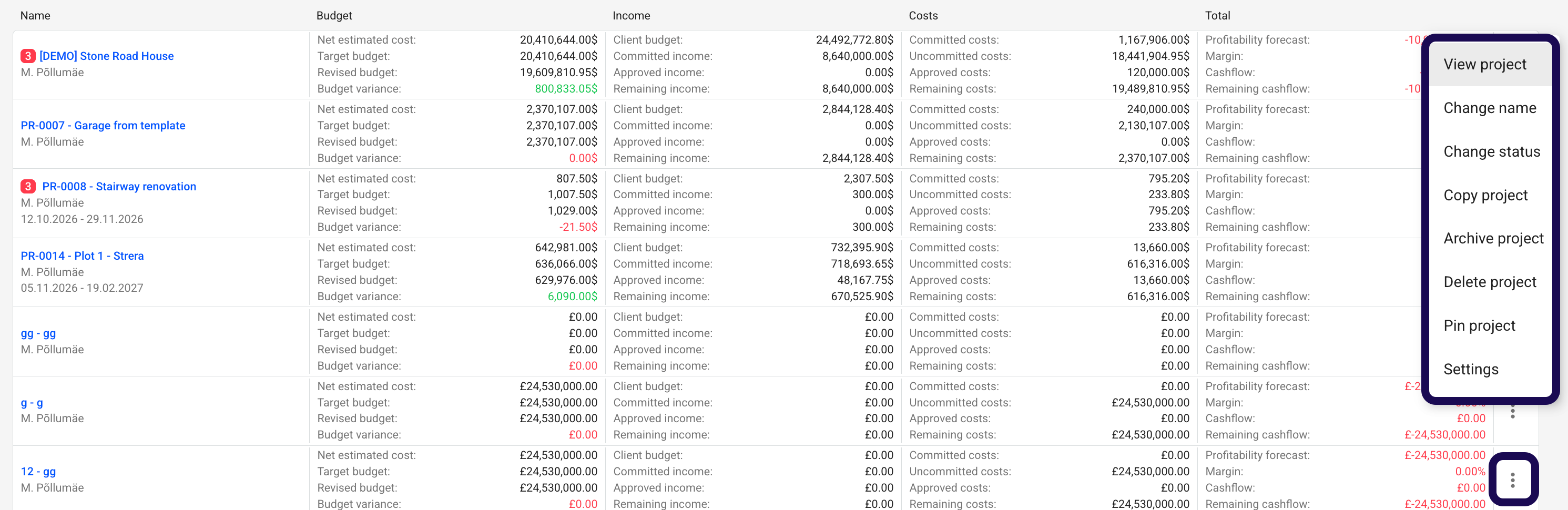
In the Projects list, click the three dots (…) on the project row.
Select Change status and choose Complete.
You can also open the project, go to Settings and change the Project status there.
Archive a project
In the Projects list, click the three dots (…) on the project row and select Archive project. You can also do this from the project's Settings.
Enter a reason for archiving and confirm.
Reactivate an archived project
Open the archived project's menu and select Reactivate project. It returns to your active lists with all its data.
Delete a project
Deleting can't be undone. All the project's documents, costs and history are removed for good.
In the Projects list, click the three dots (…) on the project row and select Delete project. You can also do this from the project's Settings.
Confirm the deletion. If the project is still active, type DELETE to confirm.
Was this helpful?
Still need help? Ask the team