Essential Plan: Company settings explained
Written By Mirell
Last updated 12 days ago
Most settings take a minute to decide once you know what they do. Go to Company → Settings and work through the questions for your plan. Each setting has a question, what to choose if your answer is yes or no, and a short explanation of what the setting does.
Fill in your company profile
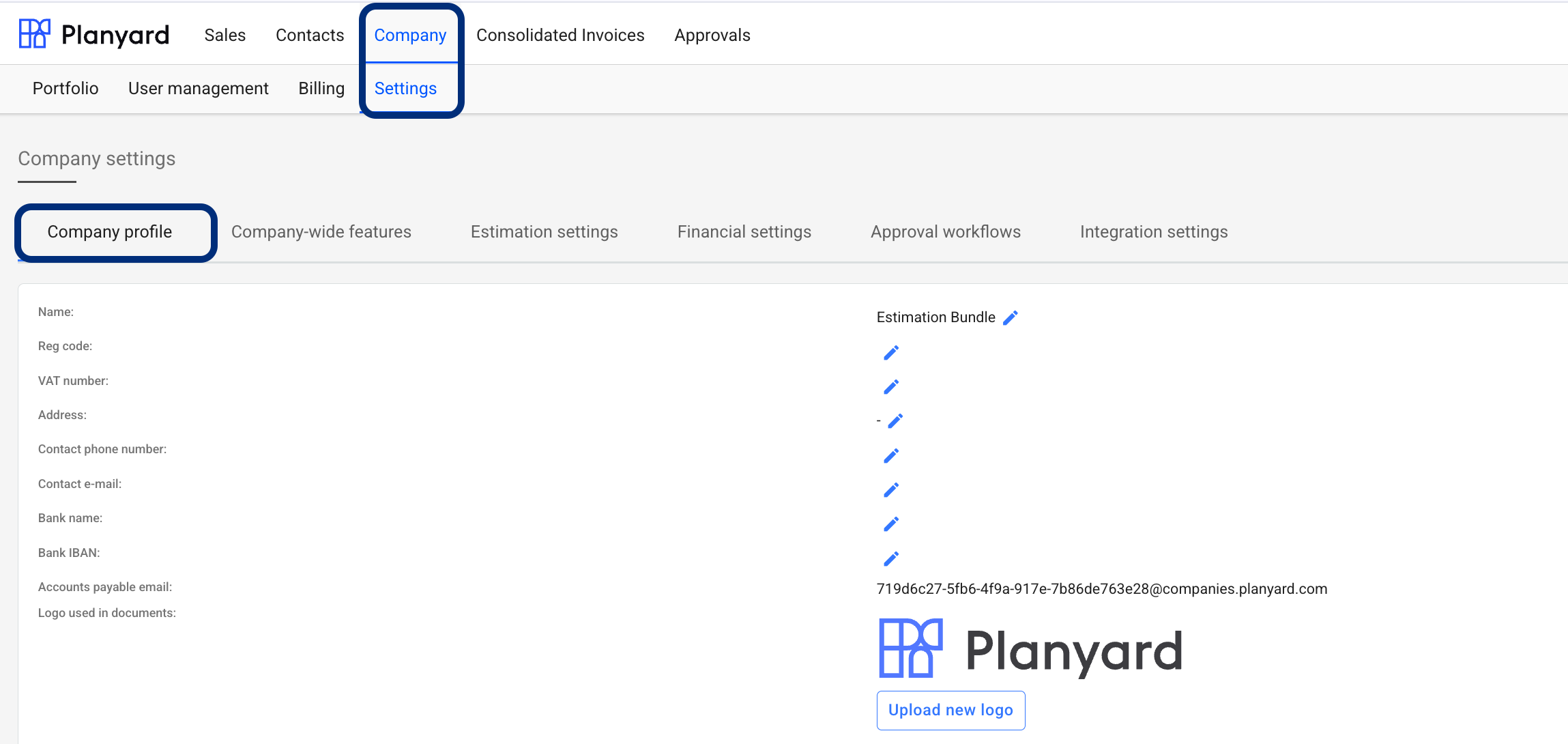
Your company profile white-labels Planyard. The name, registration code, VAT number, address, contact details and logo you enter here appear on the documents Planyard creates for you, such as quotes, purchase orders and valuations. Until you upload your own logo, documents carry the Planyard logo instead.
Company-wide features
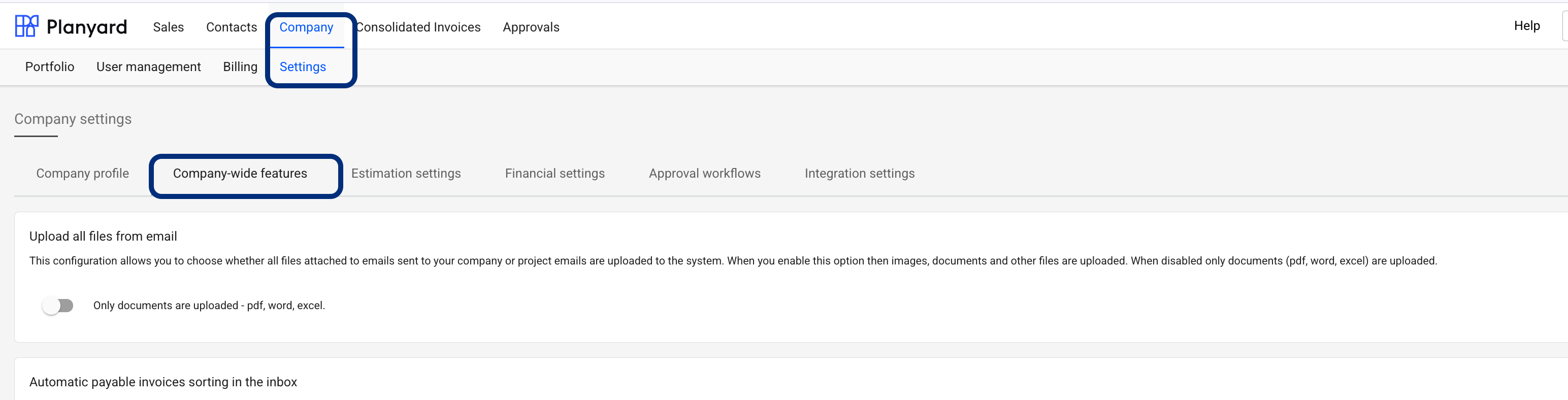
Upload all files from email
Do any of your suppliers send invoices as photos or image files instead of PDFs?
Yes: turn on. No: leave off (default).
This setting decides which email attachments are uploaded when an email reaches your Planyard inbox. When it's off, only documents (PDF, Word and Excel) are uploaded and images are ignored. That keeps your inbox clean, because many email signatures contain logos and certificate images that would otherwise be uploaded as attachments.
Automatic payable invoices sorting in the inbox
Do the invoices you receive usually quote your project name or code?
Yes: turn on. No: leave off (default).
When this is on, Planyard reads each invoice that arrives in your inbox and moves it to the right project automatically. It is most accurate when the invoice quotes a project reference. If many of your invoices have no reference at all, leave it off and assign invoices to projects yourself, so nothing lands in the wrong project.
Consolidated invoices
Do you ever receive one invoice that covers costs on several projects?
Yes: keep on. No: turn off.
Consolidated invoices let you approve the costs of a single invoice across several projects at once. You enter the invoice details and amount, choose the projects, then allocate the costs to budget lines on each one. It's useful for labour invoiced by one person who worked on several sites, or for overheads you want to spread across projects.
Credit notes
Do your suppliers or subcontractors ever send you credit notes?
Yes: turn on. No: turn off.
A credit note is a document from a supplier that reduces what you owe them, for example after an overcharge, returned materials or a mistake on their side. When this is on, credit note becomes an option in the cost approval screen. You link it to a budget line, and it is recorded as a negative approved cost, so your project figures stay accurate.
Contract retention
Does your clients hold retention on you?
Yes: turn on. No: leave off.
Retention is a percentage of each payment, often around 5%, that is held back until the work is finished and any defects are fixed. When this is on, retention fields appear in the contract creation screen, so the amount held back is calculated and shown on each contract. When it's off, the option doesn't appear and payments are shown in full.
Cost pdf accounting accounts
Do you connect Planyard to Xero or QuickBooks, and want the accounting account shown on each cost?
Yes: turn on. No: leave off.
When this is on, the accounting (ledger) account each cost is coded to is shown on the cost PDFs. It helps your bookkeeper see at a glance where each cost belongs. For it to work properly, accounting accounts must be set up for each project.
Approve costs without attachments
Do you need to record costs without an invoice or receipt attached?
Yes: turn on. No: leave off (default: attachment required).
By default, a cost can only be approved once a file, such as an invoice or receipt, is attached. Turning this on lets you approve cost amounts with no file, which suits numbers-only tracking or a one-person business logging small purchases. For teams, we recommend keeping attachments required so every cost has its paperwork.
Accounting accounts
Is your Planyard account connected to Xero or QuickBooks?
Yes: check the list and remove any accounts you no longer use. No: no action needed.
This is the list of accounting (ledger) accounts from your accounting software. When a document is sent to accounting through the integration, these accounts are attached to its line items, so costs arrive already coded. The list fills in automatically when you connect your integration. Accounts you delete in your accounting software are not removed here, so remove them manually to keep the list tidy.
Multi currency
Do you buy from suppliers who invoice in a different currency from your project budget?
Yes: turn on. No: leave off.
Multi currency lets you enter documents such as purchase orders and invoices in a currency other than the project currency. Your budget stays in its main currency, and Planyard converts the amount at the current exchange rate, so the budget always shows the true value of each order.
Not included in the Essentials plan
Purchase Order and Subcontractor related settings are part of our other plans. Read about our other plans here.
Estimation settings
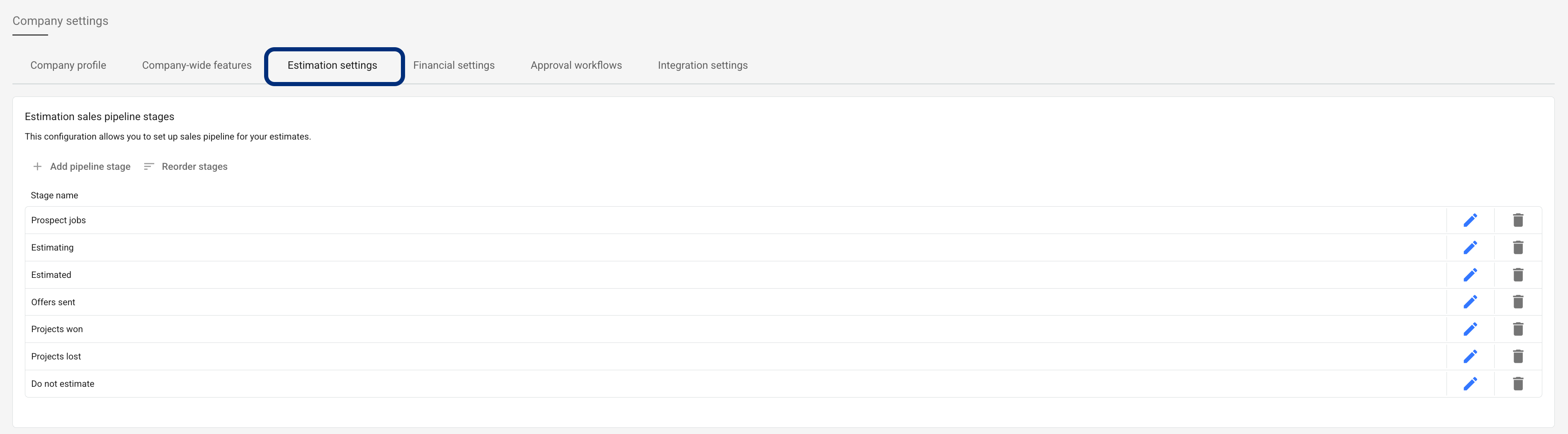
Estimation sales pipeline stages
Do your jobs go through different stages than Planyard's defaults, from enquiry to won or lost?
Yes: rename, add, reorder or delete stages. No: keep the defaults.
The pipeline stages are the columns your estimates move through. Match them to how your business actually works, so everyone can see at a glance where each job stands. Use Add pipeline stage and Reorder stages, or the edit and delete icons on each row.
Client quote terms template
Do you include standard terms or notes on your quotes to clients?
Yes: click Manage setting and add your text. No: leave empty.
The text you add here appears at the end of every client quote PDF. Use it for your standard terms and anything the client should know, such as payment terms or other notes. Setting it once saves typing it on every quote and keeps the wording consistent.
Client quote default expiry days
Are your quotes valid for a set number of days that are other then 14?
Yes: click Manage setting and enter the number of days. No: leave it default 14 days.
Planyard then works out the expiry date for each quote automatically and shows it on the exported PDF, so clients know how long the price stands.
Default VAT
Do most of your quotes use the same VAT rate?
Yes: enter that rate as a percentage. No: leave empty and add VAT on each document.
The rate you set here is filled in automatically on documents such as client quotes.
Estimate material breakdown
Do you price your line items by building them up from materials, labour and machinery, rather than entering a single rate?
Yes: turn on. No: turn off.
When this is on, each estimate line gets a calculator where you build up its unit price from the resources it needs: materials, labour and machinery. For example, a square metre of tiling might include the tiles, adhesive and grout, the tiler's time and the hire of a cutter. Planyard adds these up to calculate the line's unit price automatically. This keeps your pricing consistent and shows exactly how each price was built.
Estimate contingency
Do you add an allowance to your estimates for risk, uncertainty or wastage?
Yes: turn on. No: turn off.
Contingency is an extra percentage added to a price to cover things that may cost more than planned, such as off-cuts and waste, price rises or unknowns on site. When this is on, you can add a contingency percentage to individual line items and resources. A contingency column appears in your estimate tables, so you can see exactly how much you've allowed on each line, and you can choose to include it in exported quotes.
Financial settings
Cashflow forecasting
Do you want to forecast when money will come in and go out on your projects?
Yes: turn on. No: turn off.
Cash-flow forecasting lets you plan, period by period, how much you expect to spend and receive on each project. When this is on, forecasting is available on all your projects, so you can spot months where costs will outrun income and plan ahead, rather than finding out when the bank balance drops.
Custom cashflow intervals
Do you need to see cash flow week by week rather than month by month?
Yes: choose Weekly. No: keep Monthly (default).
This sets the time period used for every cash-flow forecast in your company, across all projects. Monthly suits most businesses and matches how most accounts are reported. Choose weekly only if you manage cash very closely, for example on short, fast-moving projects.
Lock accounting period
Does your accountant close the books each month or quarter, so no more costs should be added to past periods?
Yes: set the last closed period, and update it after each close. No: leave empty.
This locks a closed accounting period so no costs can be allocated to it. For example, if you set the period to 2025-04, costs can only be allocated from 2025-05 onwards. An invoice dated in a closed month is moved into the first open month instead, so your accountant doesn't have to reopen the books in Xero or QuickBooks. The lock doesn't move on its own, so whoever closes the books should update it each time.
Approval workflows
Approval workflow
Does anyone in your team need to approve documents, such as purchase orders and other costs, before they go out?
Yes: turn on. No: leave off.
This switches on the approvals menu and adds the purchase order approval option to the purchase order screen. It's the main switch for approvals: turn it on first, then set up the specific workflows you need, such as the purchase order approval workflow below.
Purchase order approval workflow
Should someone approve purchase orders before they're sent to the supplier?
Yes: turn on and set up who approves. No: leave off (default).
When this is on, every purchase order must go through your approval workflow before it can be sent to the supplier or have costs approved against it. You can set amounts that trigger approval, for example a purchasing manager above £5,000 and the owner above £50,000. Approvals can be set for the whole company and for individual projects; the project approval comes first, then the company one, one approver at a time. It's a simple way to stay in control of what's being committed on every project.
Cost approval workflow
Should someone check and approve costs before they're sent to your accounting software?
Yes: turn on and set up who approves. No: leave off.
When this is on, every cost that matches the threshold has to go through your approval workflow before Planyard sends it to accounting. It adds a check between an invoice arriving and it reaching accounting software, for example a project manager confirming the work was done, or the office checking the amount against the purchase order. Use it when several people process invoices and you want to be sure nothing is paid or booked without sign-off.
Was this helpful?
Still need help? Ask the team