Estimating Plan: Company settings explained
Written By Mirell
Last updated 15 days ago
Most settings take a minute to decide once you know what they do. Go to Company → Settings and work through the questions for your plan. Each setting has a question, what to choose if your answer is yes or no, and a short explanation of what the setting does.
Fill in your company profile
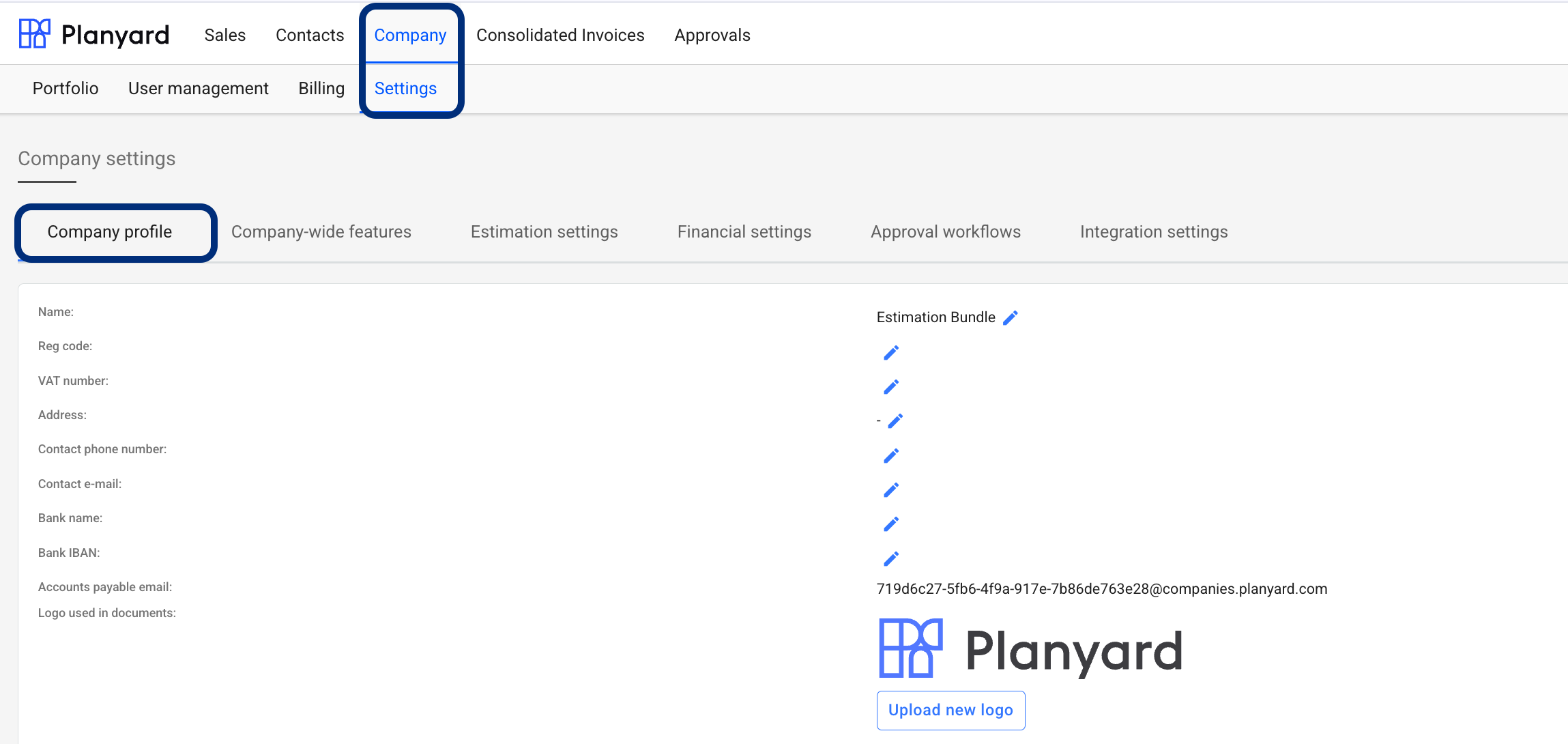
Your company profile white-labels Planyard. The name, registration code, VAT number, address, contact details and logo you enter here appear on the documents Planyard creates for you, such as quotes, purchase orders and valuations. Until you upload your own logo, documents carry the Planyard logo instead.
Estimation settings
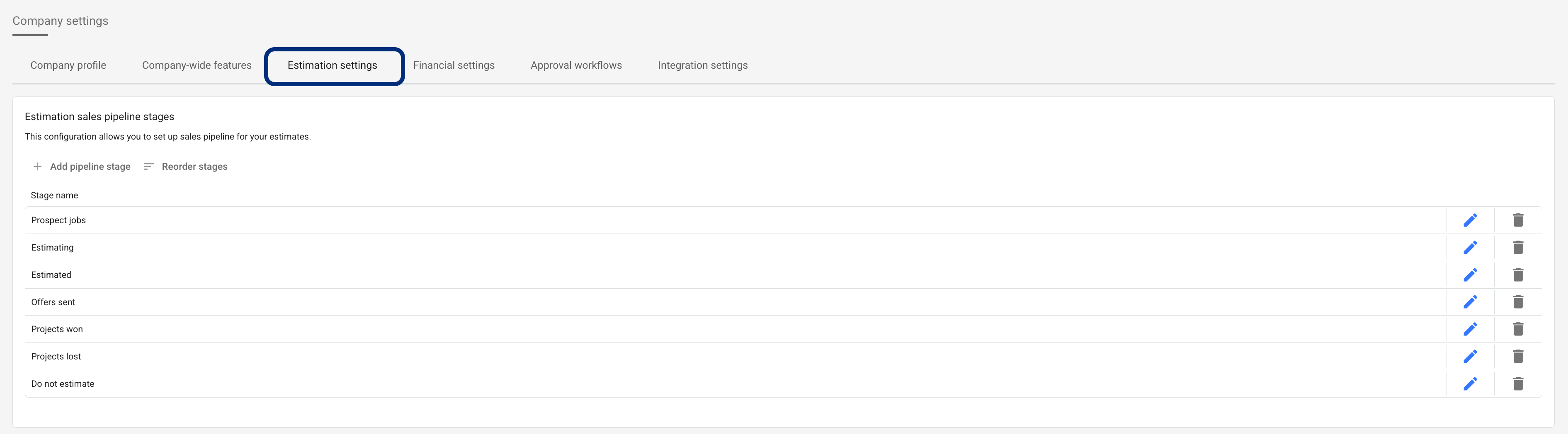
Estimation sales pipeline stages
Do your jobs go through different stages than Planyard's defaults, from enquiry to won or lost?
Yes: rename, add, reorder or delete stages. No: keep the defaults.
The pipeline stages are the columns your estimates move through. Match them to how your business actually works, so everyone can see at a glance where each job stands. Use Add pipeline stage and Reorder stages, or the edit and delete icons on each row.
Client quote terms template
Do you include standard terms or notes on your quotes to clients?
Yes: click Manage setting and add your text. No: leave empty.
The text you add here appears at the end of every client quote PDF. Use it for your standard terms and anything the client should know, such as payment terms or other notes. Setting it once saves typing it on every quote and keeps the wording consistent.
Client quote default expiry days
Are your quotes valid for a set number of days that are other then 14?
Yes: click Manage setting and enter the number of days. No: leave it default 14 days.
This sets how many days a quote stays valid. Planyard then works out the expiry date for each quote automatically and shows it on the exported PDF, so clients know how long the price stands.
Default VAT
Do most of your quotes use the same VAT rate?
Yes: enter that rate as a percentage. No: leave empty and add VAT on each document.
The rate you set here is filled in automatically on documents such as client quotes.
Want to build up prices from materials and add contingency?
If you want Planyard to calculate a line item's unit price from its materials (Estimate material breakdown), or to add contingency percentages to line items and resources to cover risk (Estimate contingency), these settings are part of the Essentials plan. Read about the Essentials plan here or contact Planyard team through the support chat.
Not included in the Estimating plan
Company-wide features, Financial settings, Approval workflows and Integration settings come with our other plans. Explore our plans to learn more.

Was this helpful?
Still need help? Ask the team